Interviewers
Keep a spoken interview beside a readable version for quotes, fact checking, and follow-up notes.
Find key answers without scrubbing through the entire recording.
Recording workflow
Transcribe audio recording to text when you need a searchable, editable version of a meeting, interview, lecture, or voice note. Upload the recording, review the transcript, and keep the useful words without replaying the file repeatedly.
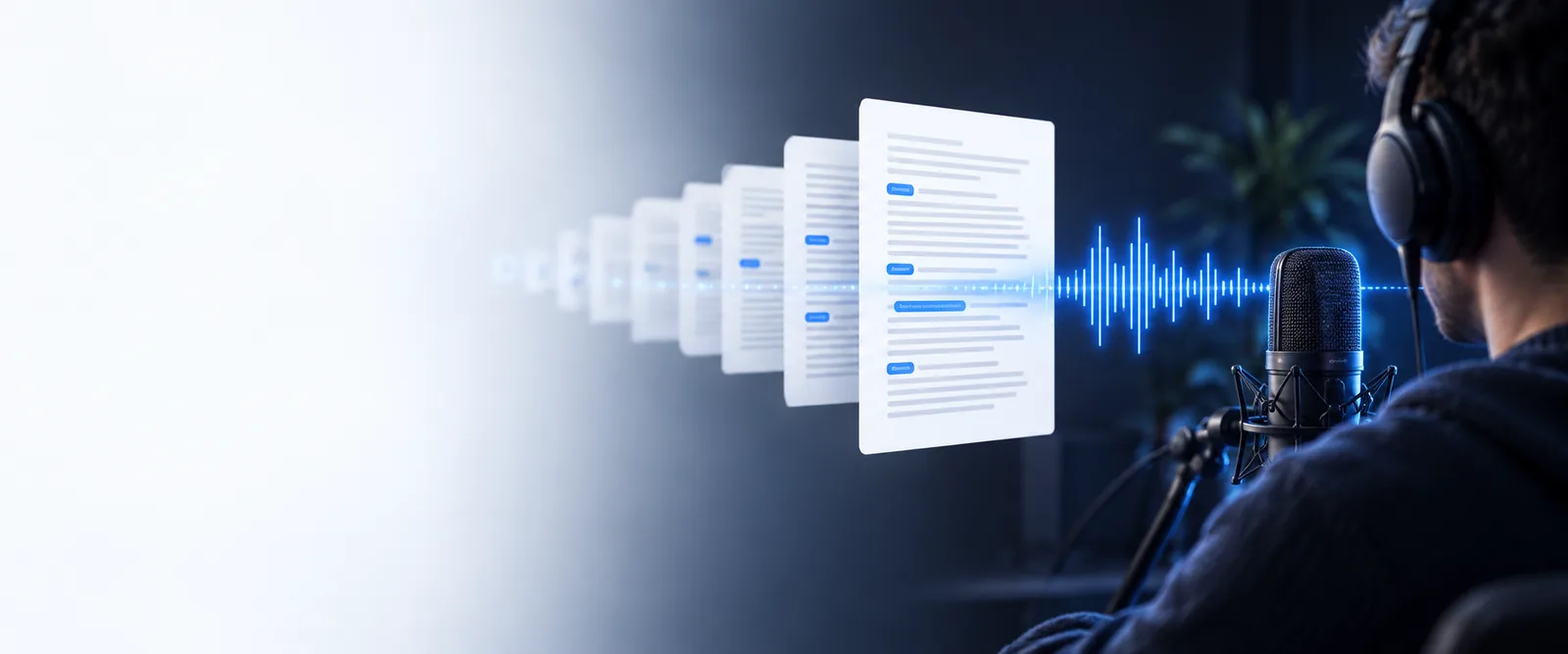
A/B comparison
A recording preserves the original sound; a transcript turns that sound into a working document. The best format depends on whether you need listening, searching, editing, or sharing.
Keep a spoken interview beside a readable version for quotes, fact checking, and follow-up notes.
Find key answers without scrubbing through the entire recording.
Pull spoken dialogue from a camera or screen recording before writing captions, descriptions, or a script.
Move from raw speech to a usable draft faster.
Turn a recorded lecture into notes that can be searched, highlighted, and reorganized after class.
Review the material by topic instead of replaying every minute.
Convert a meeting recording into an agenda recap with decisions, questions, and action items.
Give absent teammates a practical document to scan and use.
Simple process
Speech-to-text is useful, but it is not a perfect copy of the audio. A short review restores context that automated conversion may flatten or miss.
Choose the voice note, interview, lecture, or meeting file you want to convert. Use the clearest original version available.
Read through names, numbers, technical terms, speaker changes, and places where the wording seems uncertain.
Copy the corrected transcript into notes, a document, captions, or a summary workflow so it can be searched and edited.
Related formats
Choose a nearby workflow when the source file or final use needs a different path.
Format check
This comparison shows why transcription is a transformation rather than a replacement for the original recording.
| Audio recording | Text transcript | |
|---|---|---|
| Primary form | Sound file with voices, pauses, tone, and background noise | Editable words arranged as paragraphs or speaker turns |
| Searchability | Requires playback and manual scanning | Words can be searched and found directly |
| Tone and emotion | Preserves pace, emphasis, hesitation, and feeling | May describe or imply tone, but cannot fully preserve it |
| Editing | Changes usually require cutting or re-recording audio | Words can be corrected, moved, and summarized quickly |
| Sharing | Recipients need a player, headphones, or a quiet place | Can be pasted into notes, documents, captions, or messages |
| Accuracy risks | The original voice remains available for verification | Names, jargon, punctuation, and overlapping speech may need review |
| Best use | Evidence, nuance, reference, and archival listening | Search, drafting, note-taking, accessibility, and collaboration |
Visible result
The before-and-after view makes the practical change clear: a spoken file becomes text that can be scanned, corrected, and reused.
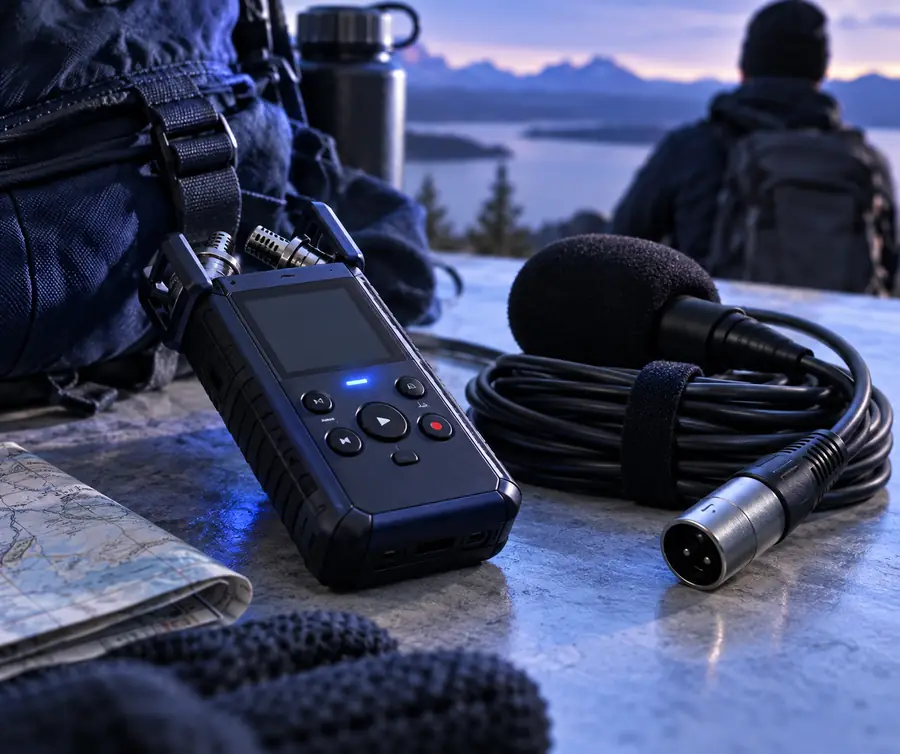
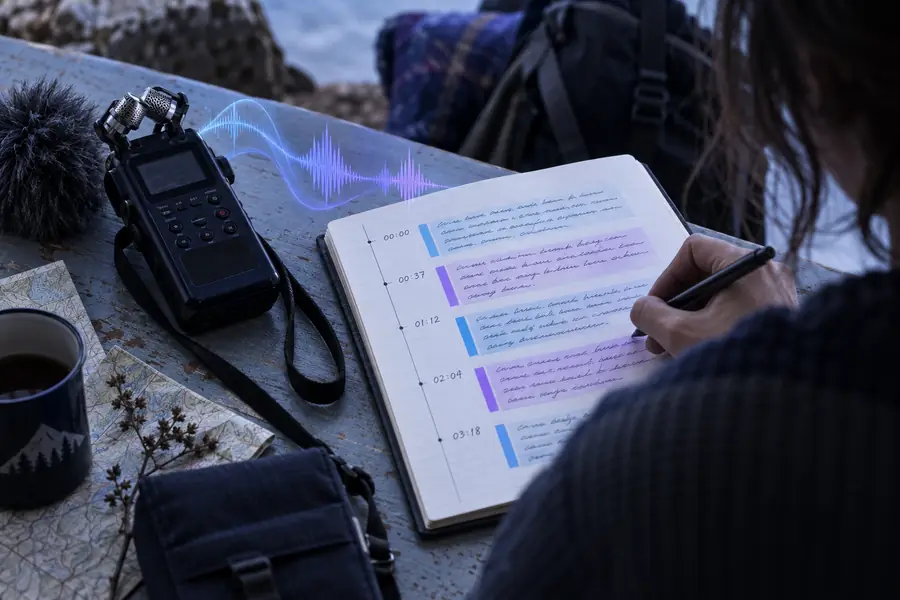
The transcript is a working draft, not a replacement for the source audio.
Before: recorded audioAfter: editable transcriptReview honestly
A transcript can save time while still needing human checks. These are the limits to expect before treating the text as final.
When people talk over one another or the recording contains heavy background noise, words may be missing or joined together.
What to do instead
Replay the surrounding seconds and mark uncertain passages before publishing.
People, places, product names, abbreviations, and technical vocabulary are easy to misread when they are uncommon.
What to do instead
Compare important terms with the recording, agenda, source documents, or participant notes.
Spoken language does not always contain clear sentence boundaries, and a transcript may not identify every speaker correctly.
What to do instead
Add paragraph breaks, labels, and punctuation while listening to the final draft.
Pauses, sarcasm, emphasis, gestures, and emotional tone can be reduced or lost in plain text.
What to do instead
Keep the original recording available whenever tone or context affects the meaning.
Next step
Upload a recording and create a transcript you can search, edit, and review. Keep the source audio nearby, then correct the details that matter most for your audience.
Variant FAQ
Upload the recording to an audio-to-text tool and let it produce a first transcript. Then review the text for names, punctuation, speaker changes, and unclear sections before using it.
Common sources include interviews, meetings, lectures, phone notes, podcasts, and voice memos. Clear speech and limited background noise generally make the transcript easier to check.
No. A transcript captures spoken words in text, but it may not preserve tone, pauses, overlapping speech, or every nonverbal detail. Keep the recording when those details matter.
Use the clearest original recording, reduce unnecessary background noise, and review names, numbers, jargon, and speaker changes manually. Replay uncertain passages instead of guessing from context.
Yes. The transcript is intended to be a working text document, so you can correct errors, add headings, identify speakers, remove filler words, and turn it into notes or captions.